
Quick Start
1. Add the scene protocol handler to your app
Your app implements a tiny #if DEBUG handler that interprets simshot's launch arguments and navigates to each scene. See the Scene Protocol for the spec and a SwiftUI example. (5 minutes.)
2. Verify the environment
bash
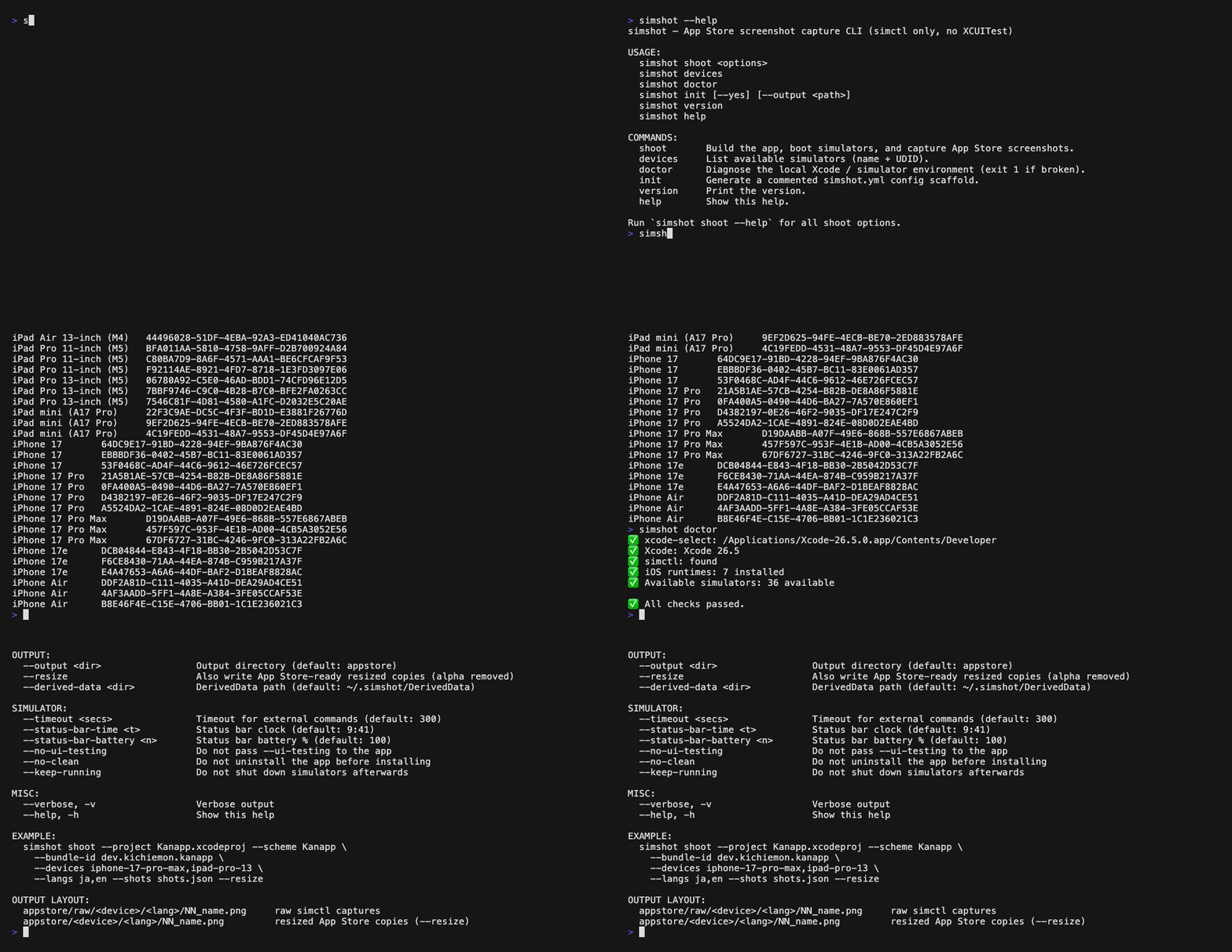
simshot doctor     # diagnose xcode-select / Xcode / simctl / runtimes
simshot devices    # list available simulators
3. Capture screenshots
Create a shots.json (see Configuration) or use --scenes:
bash
simshot shoot --project MyApp.xcodeproj --scheme MyApp \
  --bundle-id com.example.myapp \
  --devices iphone-17-pro-max,ipad-pro-13 \
  --langs ja,en --scenes home,detail,settings \
  --output appstore --resize
For each device × language, simshot builds the app, boots the simulator, overrides the status bar (9:41 / 100%), launches each scene with the scene-protocol arguments, waits for it to settle, and captures with simctl io screenshot. With --resize it also writes App Store-ready copies.
Screenshots land in appstore/<device>/<lang>/NN_name.png.
text
appstore/
├── raw/
│   └── iphone-17-pro-max/
│       ├── ja/
│       │   ├── 04_home.png
│       │   └── 01_trace.png
│       └── en/
│           └── 04_home.png
└── iphone-17-pro-max/            # --resize: App Store-ready copies
    └── ja/
        └── 04_home.png
What happens on every step
xcodebuildbuilds the app for the generic simulator (or use an existing.appwith--app-path).simctl bootstatus <udid> -bboots (and waits).simctl status_bar <udid> override --time "9:41" --batteryState charged --batteryLevel 100 ...prettifies the status bar.- The app is installed (previous install removed first for a clean state).
- For each shot, simshot launches the app with the scene protocol args, waits for the scene to settle, then takes
simctl io <udid> screenshot.
Every external command runs through a timeout + retry wrapper, so a crashed app or stuck simulator can never hang CI.